Guide · Excel for Mac
Switch between open Excel workbooks on a Mac
Excel for Mac opens every workbook in a window of its own, and its sheet tabs switch sheets, not workbooks. To move between workbooks there are four ways: press ⌘` to step through the windows, pick the workbook by name in the Window menu, arrange the windows to see several at once, or add a tab bar with one tab per workbook. The first three are built in and cost nothing.
01
Press ⌘` for the next workbook
Command and the grave-accent key, ⌘ `, brings forward the next window of the application in front. In Excel every workbook is a window, so each press goes to another workbook. Add Shift, ⇧ ⌘ `, to go the other way.
- Where the key is: on most keyboards, above Tab and to the left of 1. Apple notes that the character on that key varies with the keyboard layout.
- If it does nothing: open System Settings → Keyboard → Keyboard Shortcuts → Keyboard and check that Move focus to next window is on, and which key it uses.
- Where it stops: it goes through the windows in turn without showing which one comes next, so with more than two or three workbooks you press, look and press again. Minimized windows are skipped.
03
See several workbooks at once with Arrange
When you need two workbooks together, copying between them or checking one against the other, put them side by side instead of switching:
Open the workbooks you want to see.
Choose Window → Arrange… in the menu bar. Microsoft's documentation names it View → Arrange All on the ribbon; which of the two you see depends on your version of Excel.
Pick Tiled, Horizontal, Vertical or Cascade. Tick Windows of active workbook to arrange only the windows of the workbook you are in.
To see two sheets of one workbook at once, choose Window → New Window first, then arrange.
Where it stops: each workbook you add makes every window smaller. Arrange is for two or three workbooks you are working across, not for ten you move between.
04
Add a tab bar, one tab per workbook
Excel draws sheet tabs along the bottom of a workbook, and none for the workbooks themselves. A tab bar adds that row: every open workbook gets a tab, and one click brings it forward. It works the way browser tabs do, and of the four ways it is the only one that keeps every open workbook in view all the time.
Neither Excel nor macOS has one. On the Mac two apps add it: TabBar, which we make, and DocTabs, which is free. Both do the same for Word and PowerPoint. How they differ, tested side by side, is on TabBar, DocTabs and Office Tab compared. Office Tab, the best known of these tools, runs only on Windows.
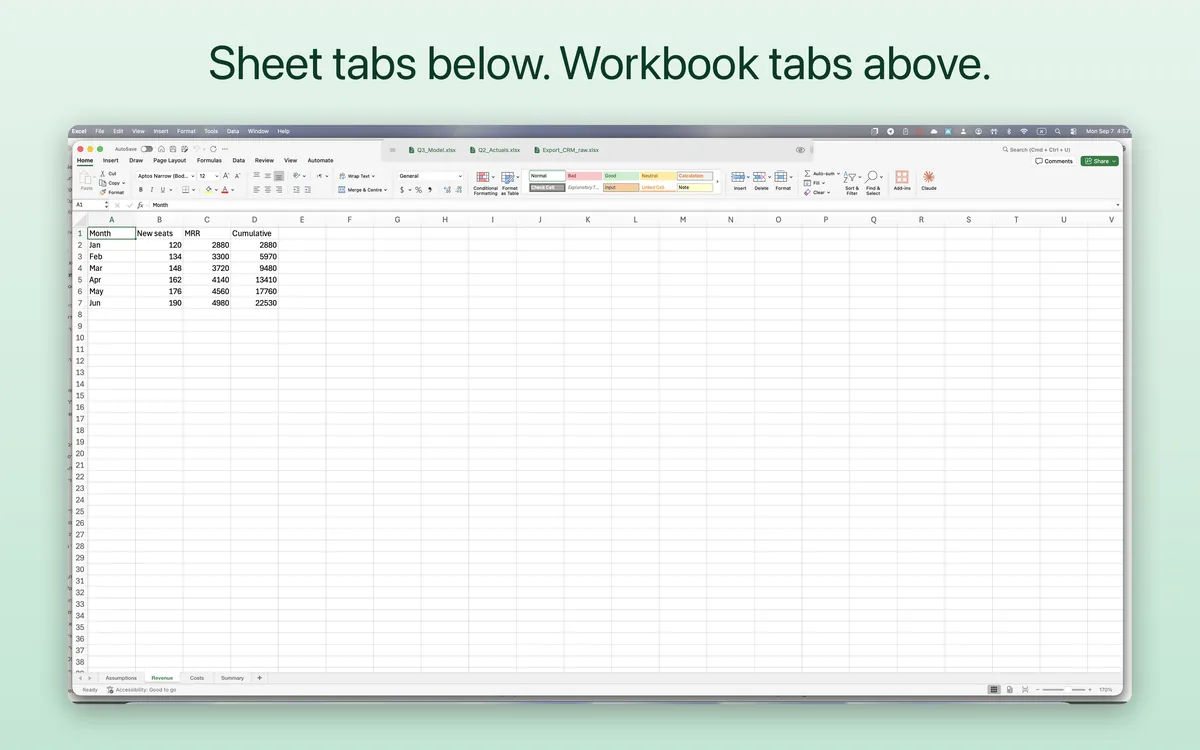

TabBar puts its bar above the Excel window and moves the window down to make room, so it covers nothing. $39.99 once on the Mac App Store, or a free trial as a direct download.

05
Which one to use
- Two workbooks, back and forth: ⌘`.
- Many workbooks, and you know the name: the Window menu.
- Two or three you need to see together: Arrange.
- Many workbooks, all day: a tab bar.
Sources
- Apple, Mac keyboard shortcuts — Command–Grave accent switches between the windows of the app you are using.
- Microsoft, View multiple panes, sheets, or workbooks — Arrange, its four layouts, and New Window.
Checked 15 November 2026. If something here differs in your version of Excel or macOS, write to support@bdtech.app.